To create a booking page, decide what guests can book, how many places you have and what you charge. Then set your prices, times and how guests pay, add the practical details and publish. Make a test booking before you share the link.
A booking page is a web page where guests choose a service or activity, see free dates and times, and book. A hosted booking page has its own web address, so you can use it even if your business has no website.
This guide covers appointments, classes, tours and workshops. It has two worked examples and a checklist for testing your page. The setup steps use TicketPa.
Choose the right type of booking page
Start with what one booking reserves. A private lesson needs a free instructor. A pottery workshop needs places left in a set session. Your booking tool must handle the way you sell.
| What you sell |
What the page needs to manage |
Example |
| Appointments |
Staff hours and the length of each appointment |
A 60-minute private lesson |
| Group sessions |
Start times, ticket numbers and places left |
Eight places at a Saturday workshop |
| Private group activities |
One group booking the whole session, with a group price and size limit |
A private tour for up to six guests |
For simple appointments, a calendar tool may be enough. Google Calendar's appointment setup guide covers duration, availability, location and booking form settings. Some features need a paid Google Workspace or Google One subscription. For classes or tours, check that your tool handles several ticket types and places shared by many guests.
In TicketPa, your business booking page lists your published activities. Each activity page describes one offer and lets guests choose a date, time and tickets. The booking form then collects their details. You can share the business page or one activity.
Decide these before you start
Setting up is quicker when you make the big decisions before you open the editor. Answer these five questions first.
How many guests can you take?
Count your real limit for each start time: seats, boats, bikes, instructors or room size. If you own eight kayaks, sell eight places, even if the river could take more.
Then decide the smallest and largest group one booking can have. A cooking class run in pairs might need at least two guests per booking. A private lesson takes one.
If two activities share the same boats or room, your booking tool needs to know. Otherwise both activities can sell the last boat at the same time.
Who runs it, and when?
For appointments, your staff's hours are what guests can book. Decide who can deliver each service, their working hours and their days off. Also decide how much time to keep free between appointments for cleaning, setting up or travel.
For group sessions, check that someone can run every start time you sell. If nobody is free on a busy Saturday, you will have to cancel paid bookings.
What will you charge?
Choose how the price works:
- Per person: each guest buys a ticket. Use separate tickets for adults, children or students, with the ages in the description.
- Per group: one group books the whole session for a set price, such as €320 for up to eight people.
- Extras: optional add-ons, such as a photo package or equipment hire. They add to the total and take no place.
Work out your price from your costs first. Our free tour price calculator takes your costs, group size and margin. It shows what to charge per guest and how many guests each departure needs to cover its costs.
Show the full price on the page. Guests trust a price that stays the same at checkout. If you plan to add a booking fee for guests, read whether guests should pay booking fees first.
When do guests pay?
- Pay on arrival is the simplest. Guests book quickly, and you pay no online payment fees. Some guests who have not paid will not turn up.
- Pay online when booking secures the place and the money before the day. Each payment carries a card fee.
- Guests choose works when some guests want to pay ahead and others prefer to pay on the day.
How to take online payments for tours and activities explains card fees, payouts and refunds. If missed bookings are already a problem, the guide to reducing no-shows lists the booking settings that help most.
What happens when plans change?
Decide three limits before you publish:
- Cancellations: until when guests can cancel for free, and what they get back after that.
- Last booking: how close to the start guests can still book online. Stopping two hours before the start gives you time to prepare.
- Booking window: how far ahead guests can book, such as four months.
The tour cancellation policy templates give you wording to start from.
What to include on your booking page
A booking page should answer the questions guests ask before they pay or reserve a place. Prepare these details before you open the editor.
| Guest's question |
What to put on the page |
| What am I booking? |
A specific name, a short description and a photo that shows the experience or service |
| When can I come? |
Free dates and start times, plus the duration |
| How much will I pay? |
The price per person, appointment or group, any extras or fees, and when payment is due |
| Where do I go? |
The address or meeting point, with directions to the entrance |
| Is it right for me? |
Age limits, experience level and any access or fitness requirements |
| What is included? |
Equipment, materials or other items included in the price |
| What should I bring? |
Clothing, footwear or anything guests must bring themselves |
| What if my plans change? |
Cancellation and rescheduling terms |
| Who can I contact? |
An email address or phone number someone checks |
Be specific wherever guests could misunderstand. "Materials included" leaves guests guessing. "Clay, tools, glazing and firing included" tells them what they get, and "collect your piece three weeks later" tells them what happens next.

TicketPa demo: the activity page puts the description beside the date, time and ticket choices. Thames Kayak Club is an example business.
How to create a booking page in TicketPa
Start with one offer you are ready to sell. You can add more activities later.
1. Add your business details
Create your account, then enter your business name, country, timezone, currency and contact email. Check the country, timezone and currency carefully. Only our support team can change them later.
Choose a short name for your link that people will recognise. Your business page gets an address like ticketpa.com/book/your-business. The getting started guide walks through each step.
2. Create the activity and choose how guests book
Open Activities, then Create activity. Add the name, a short description, the duration and the location.
Under How do guests book?, choose At set times for a class, tour or workshop with fixed start times. Choose At a free time with your staff for appointments. You can't change this later for that activity.
3. Set your prices
On Pricing, add a Ticket for each kind of guest, a Private group price for a whole group and an Add-on for each extra. Guests need at least one ticket or private group price to choose from.
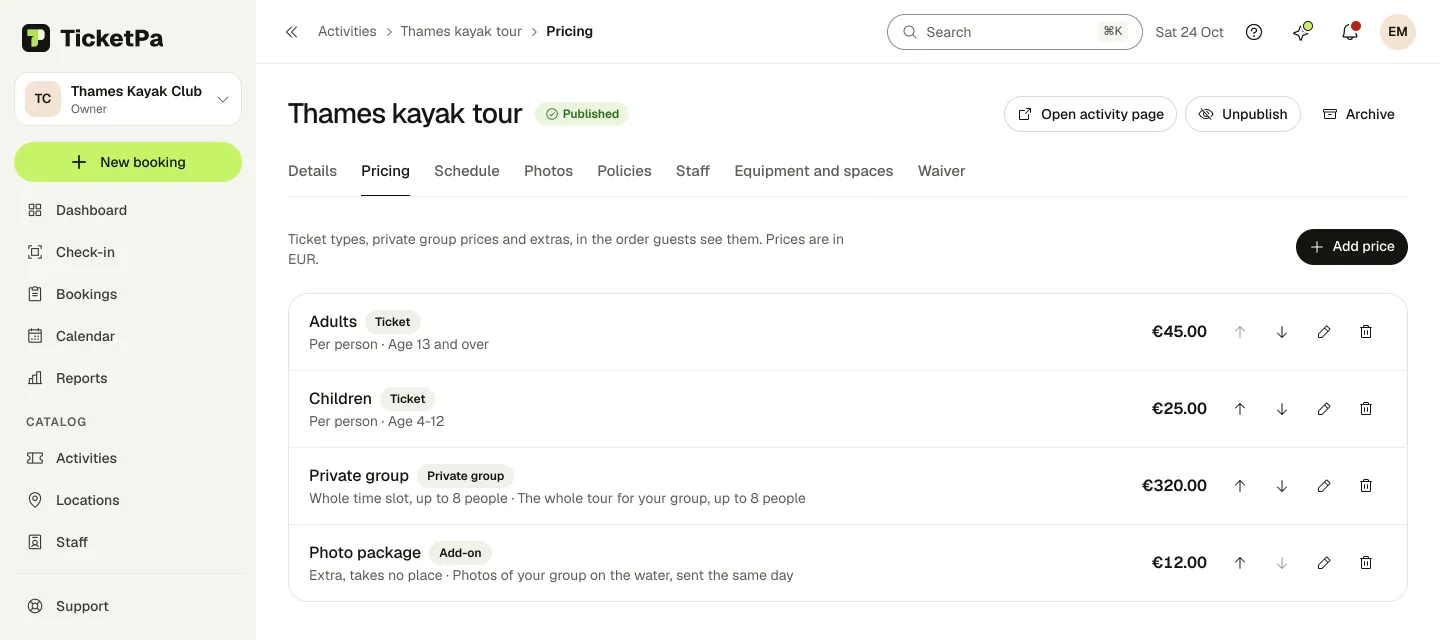
TicketPa demo: one tour with adult and child tickets, a private group price and a photo package.
4. Set times and booking limits
For a group session, open Schedule and set the days, start times and places in each time slot. An eight-person workshop has eight places in each time slot, whether they go to eight guests or two families.
For appointments, switch on the people who deliver the service on the Staff tab. Check their hours, or your location's opening hours. On Times, choose how often appointments start and the Time kept free before and after each one. Set up appointments walks through each step.
On Policies, enter the limits you decided: the smallest and largest booking, when online bookings stop before the start and how many days ahead they open. Set how long free cancellation lasts and the refund after that in the same place.
If your activities share boats, bikes or rooms, add them under Equipment and spaces on the Standard plan. TicketPa then never books the same item twice at the same time.
5. Add photos and details
On Photos, add pictures of what guests will actually do or of the place where you meet them. On Details, fill in the full description, What's included and What to bring, using the table above.
6. Choose how guests pay
Open Payments and, under How guests pay, choose Pay on arrival, Pay online when booking or Guests choose. This applies to all your activities. Pay on arrival is the default. Online payment needs a connected Stripe account.
Before you take online payments, check the plan and payment fees on the pricing page. Then check the total a guest sees, including any booking fee you add.
7. Add your branding
Open Booking page to add your logo, pick one of seven accent colours, write a short welcome text and check your contact details. You also choose which languages guests can switch the page to.
A good welcome text says who you are and what guests can book. Save the longer story for the activity description. See Customise your booking page for every setting.
8. Preview and publish
Use Preview to check a draft's text, photos and prices. Only your team sees the preview, and nobody can book from it.
Select Publish when the offer is ready. A scheduled activity needs a price guests can choose and an upcoming time slot. An appointment needs a price, staff who run it and hours to work. If something is missing, the Publish button stays off and the activity lists what to add.
Then open the published page while signed out and run the test below.
Booking page examples
These made-up examples show how an offer becomes page text and booking settings.
A pottery workshop with eight places
Example page text:
Beginner pottery workshop
Make a small bowl by hand in a 90-minute class. No pottery experience needed. Clay, tools, glazing and firing are included. Collect your finished piece three weeks later.
Saturdays at 10:00. €45 per person. Eight places per session. Adults aged 18 and over. Wear clothes you do not mind getting messy.
Meet at Clay Corner's studio reception, through the courtyard entrance, 10 minutes before the class. The full address is shown with the location map.
Booking settings: choose At set times, add a €45 ticket, then set a Saturday 10:00 schedule with eight places. Add the studio address, a photo of the workspace and your cancellation terms before publishing.
A private lesson with an available instructor
Example page text:
Private beginner guitar lesson
A 60-minute lesson for one adult beginner at our studio. Bring your guitar. We provide a tuner and a music stand. €40 per lesson. Choose a free time with your instructor.
Booking settings: choose At a free time with your staff and set the duration to 60 minutes. Switch on the instructor, check their hours and keep 10 minutes free after each lesson. Add a €40 ticket, and on Policies keep Largest booking at 1 so each lesson is for one guest.
The workshop sells several places at one start time. The lesson books one instructor's time. Decide which one you need before you set up times.
Test your booking page before sharing it
Open the public link on your phone while signed out. Book as if you were a new guest.
- Find the offer. Check that the name, photo, duration and location make sense without you explaining them.
- Choose a date and time. Check that the times match your schedule or staff hours. Check a day that should be closed too.
- Check tickets and price. Try one ticket and, for a group session, several. Check the extras, the total and when payment is due.
- Read the practical details. Look for the meeting point, what to bring and the cancellation terms.
- Make a booking with your own details. A test booking on a published page is real and takes a place. If guests pay online, your card is charged too. Stopping before payment does not test the confirmation.
- Check the result. Find the booking in your dashboard. Open the confirmation email and ticket, and check the date, time, location and payment status.
- Free the place again. Cancel the test booking and check that the place or appointment time is free again. If you paid online, refund the payment.
TicketPa guests do not need an account. They enter their name, email address and phone number. Pay on arrival bookings are confirmed straight away. Online bookings are confirmed once the payment goes through.
Once the test works, copy your link from Share. Use your business page for everything you offer and an activity link when you promote one offer. Then follow the guides to adding a booking button to your website or sharing your link on Instagram, Google and WhatsApp.
Create your booking page and start with one activity you are ready to sell. The 30-day free trial needs no card.